
Please note: Compliant cash discounting requires that you display the higher price on your printed menus/menu boards. Re-printing menus with the higher prices is required to be in compliance with federal regulations. NY & CA Merchants must display both the cash and card prices on the shelf/menu.
On the dashboard
-
Log in to your Clover dashboard.
-
Select Settings > View all settings.
-
Select Transactions > Payments > Cash Discount.
-
Select Enable to turn Cash Discount.
-
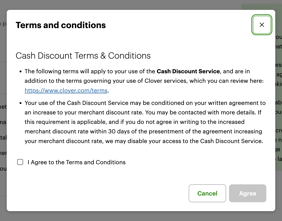
View the Terms and Conditions and select the checkbox to accept the Terms and Conditions.
-
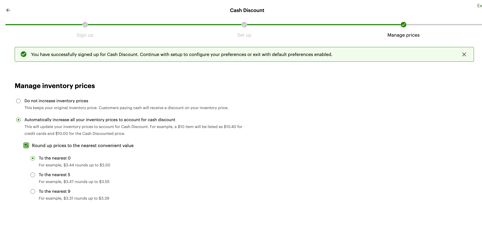
(Optional) Automatically increase all item prices in your inventory to account for the Cash Discount markup.
-
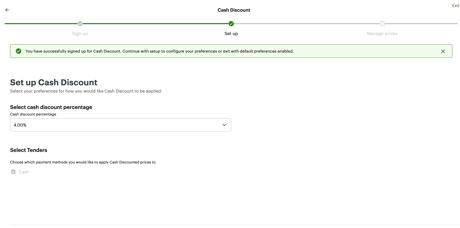
(Optional) Choose which payment methods you would like to apply the Cash Discount to.
-
To manage your Cash Discount preferences at any time, select Settings > Transactions > Payments > Cash Discount.
 > View all settings.
 On a Clover device
-
On a Station, Mini, Flex, Kiosk, or Compact, open the Setup app.
-
Tap Payments.
-
Scroll down and tap Cash Discount.
-
Select the checkbox to enable Cash Discount.
-
Enter your preferred discount percentage and tap Save.
-
Accept the terms and conditions.