
Set up a Flex 4
With Clover Flex, you can accept payments however your customers prefer. Customers can insert, swipe, or tap a card, or use Apple and Google Pay by tapping an NFC-enabled phone or watch on the contactless payment reader. You can process cash, checks, and Clover gift cards.
Here’s a guide to what’s in the box, what features are on the Flex, and how to get ready to use it.
What's in the box
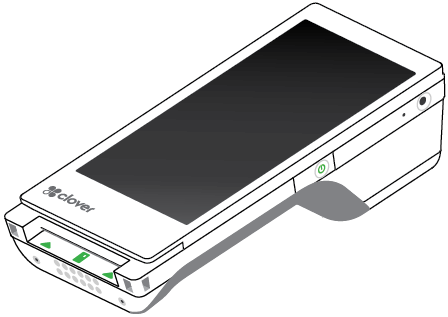
Flex with silicone sleeve
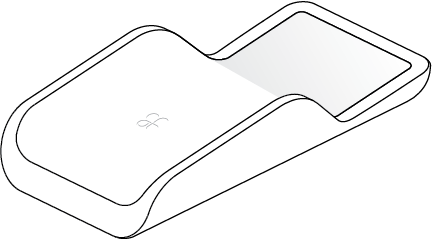
Charging cradle
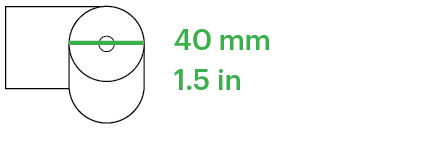
Receipt paper roll
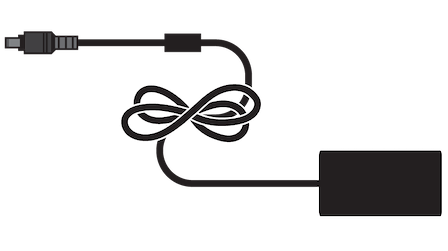
Power adaptor
What's on the Flex
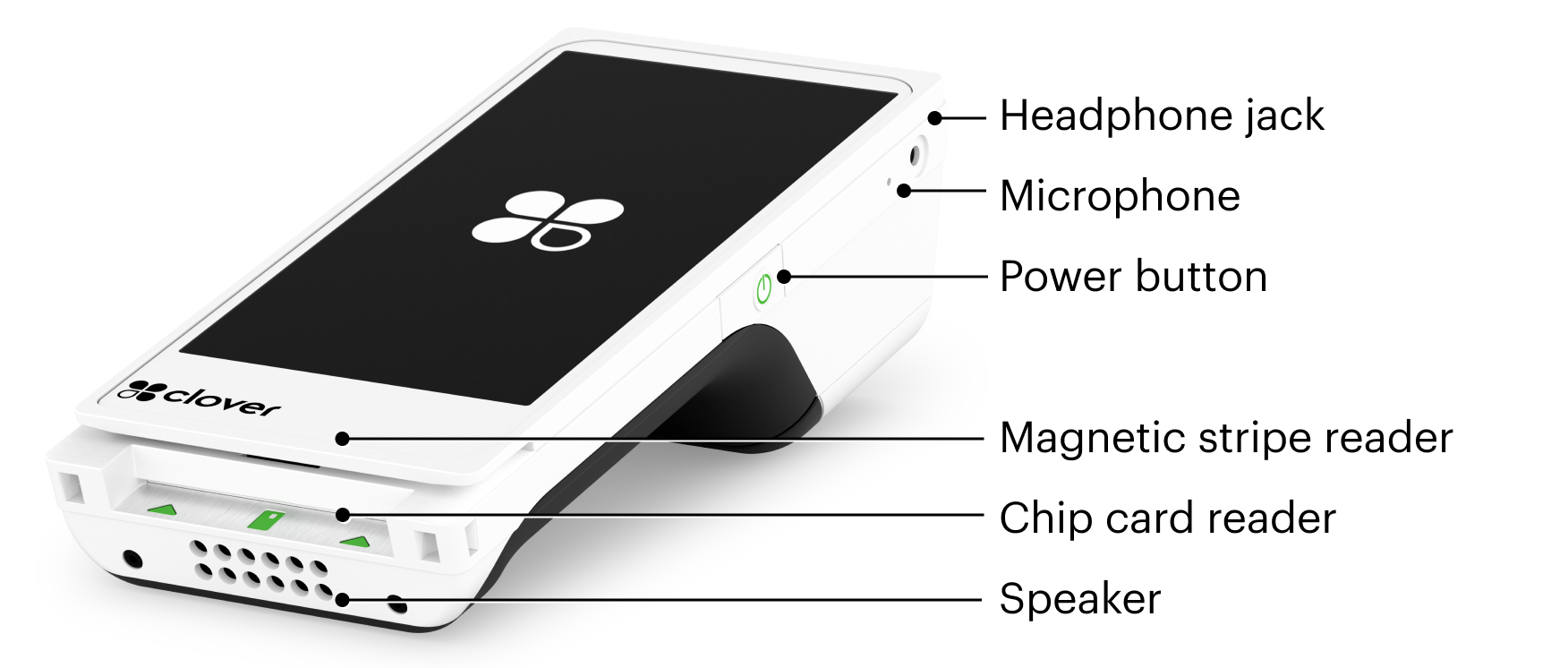
-
Use the power button to turn the Flex on and off.
-
Insert cards into the chip card reader.
-
Slide cards through the magnetic stripe reader.
-
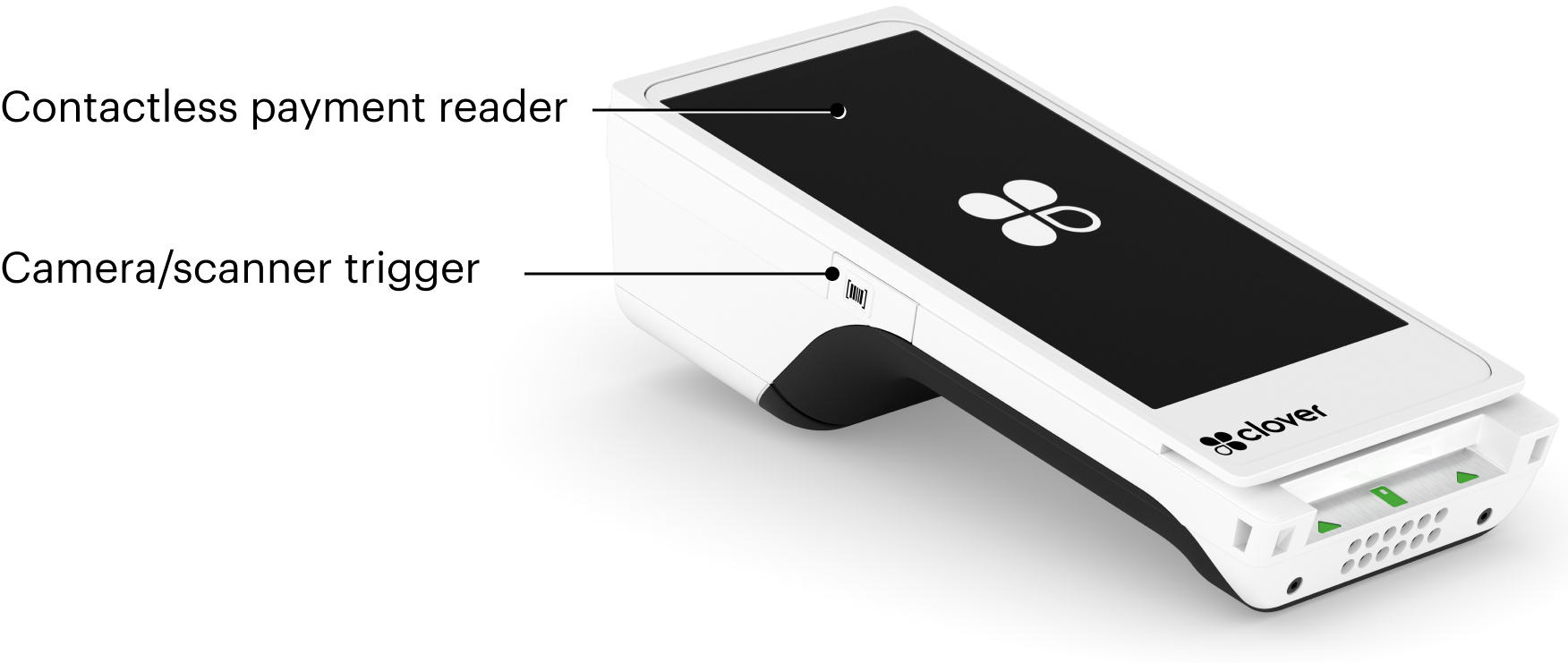
Customers can tap chip cards, NFC-enabled phones, or watches on the contactless payment reader on the display screen.
-
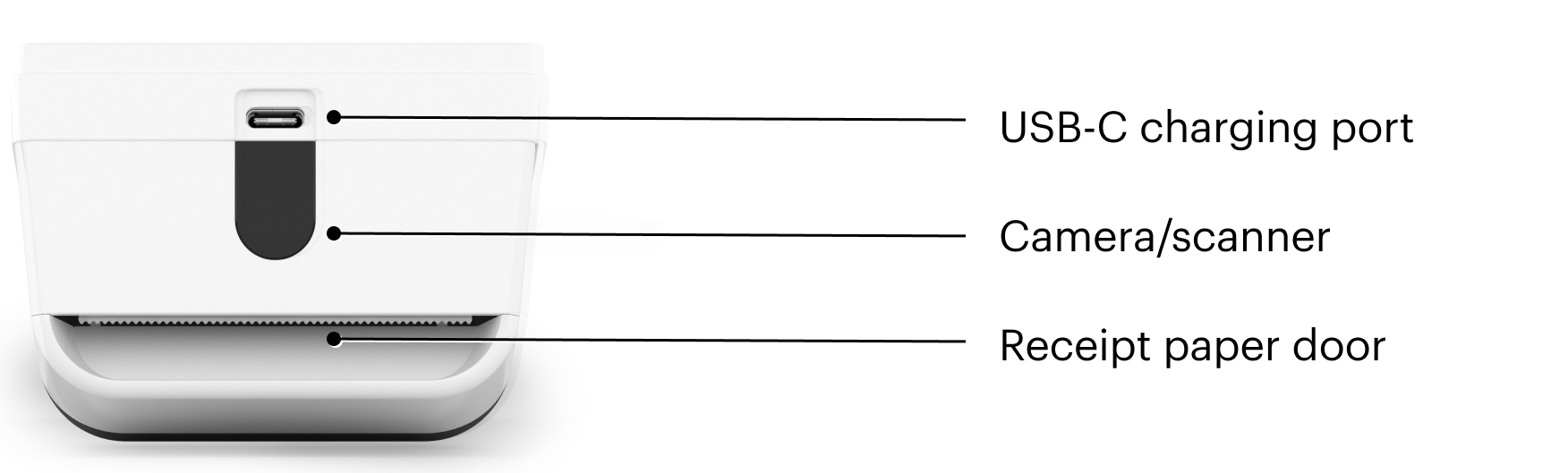
Use the camera/scanner to scan barcodes and QR codes and take photos of personal checks. Hold down the trigger while pointing the Flex at the item to scan or photograph. Release the trigger when the display screen shows that it’s been processed.
-
Pull down on the receipt paper door to load paper.
-
The USB-C charging port can be used with Clover’s travel kit power charger (available separately) or any USB-C charging cable.
Activate the Flex
Flex 4 Quick Start Guide (PDF)
The first time you turn on the Flex, you’ll be guided through steps to activate and set up the device.
Before activating the Flex, make sure your WiFi router is set up, connected to the internet, and has a security level of WPA or WPA2. Your network must be a closed, protected, and secure network to process payment transactions.
-
Remove the protective plastic film from the display screen.
-
Switch on the device by pressing the power button on the right side until the Clover logo appears.
-
On the display, choose your language.
-
Connect the Flex to the internet by entering your WiFi network information. If WiFi is unavailable and your Flex has a SIM card, you'll see an option for connecting to a cellular network.
-
When you’re prompted to enter an activation code, follow the instructions on the screen to retrieve it. Once you enter the code, Clover will install the latest apps for your device.
-
Continue through the remaining screens to complete the device setup process.
Load the receipt paper
-
Hold the Flex so the back of it faces you.
-
Open the paper compartment by grasping the top of the compartment door and pulling it toward you.
-
Insert the roll of paper so that the end extends straight out of the slot in the top of the compartment door.
-
Close the compartment door until it clicks.
-
On the display screen, tap to print a test receipt.
Set a passcode to secure your Flex
During activation, you’ll have the opportunity to set a passcode. If you already have an admin account, the activation process will not include this step.
Setting a passcode adds an extra layer of security. Employees can have individual passcodes, which makes it easy to track their sales and attendance. You can set passcodes on the dashboard or in the Employees app on the device.
Charge the Flex
The Flex arrives with enough battery power to set it up and activate it. You can fully charge it whenever you have the time.
-
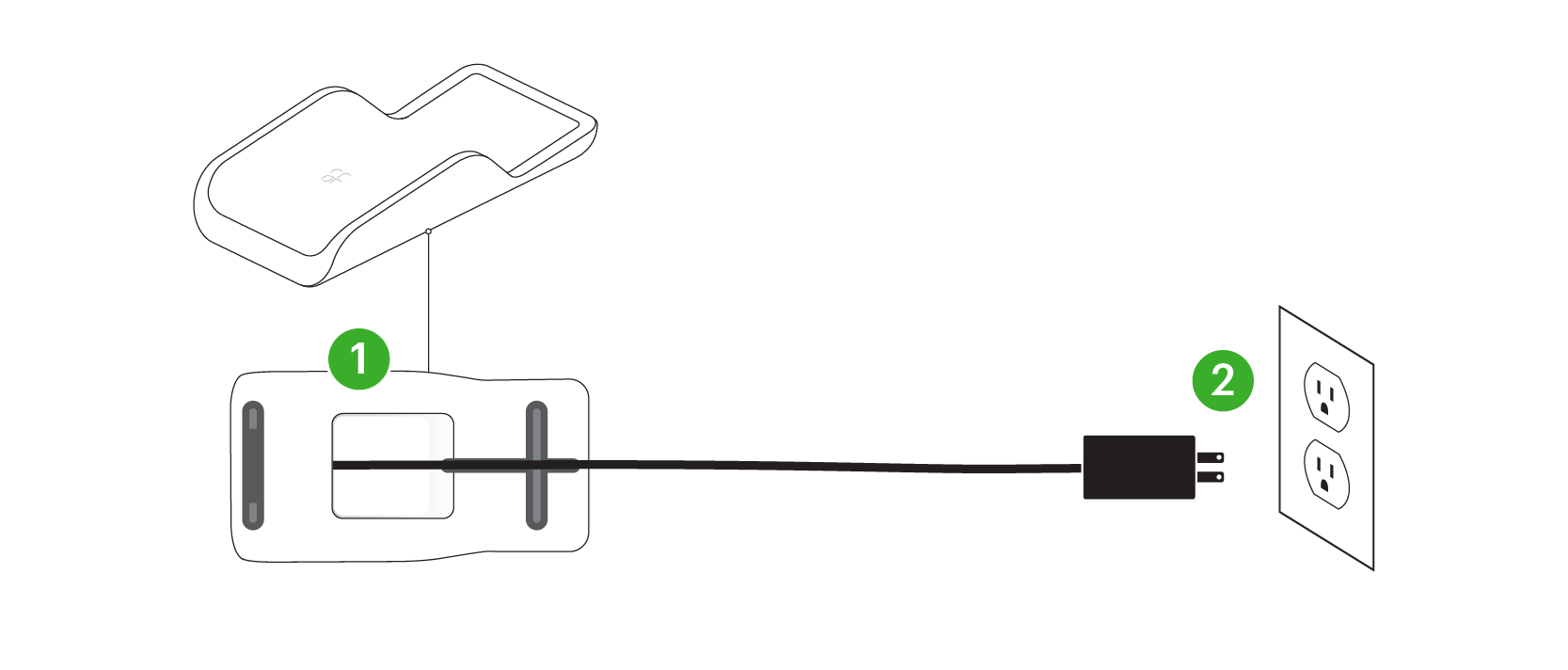
Holding the charging cradle upside down, firmly insert the cord attached to the power brick into the charging port and thread the cord across and out the back.
-
Plug the power cord into the Flex and into a power outlet.
-
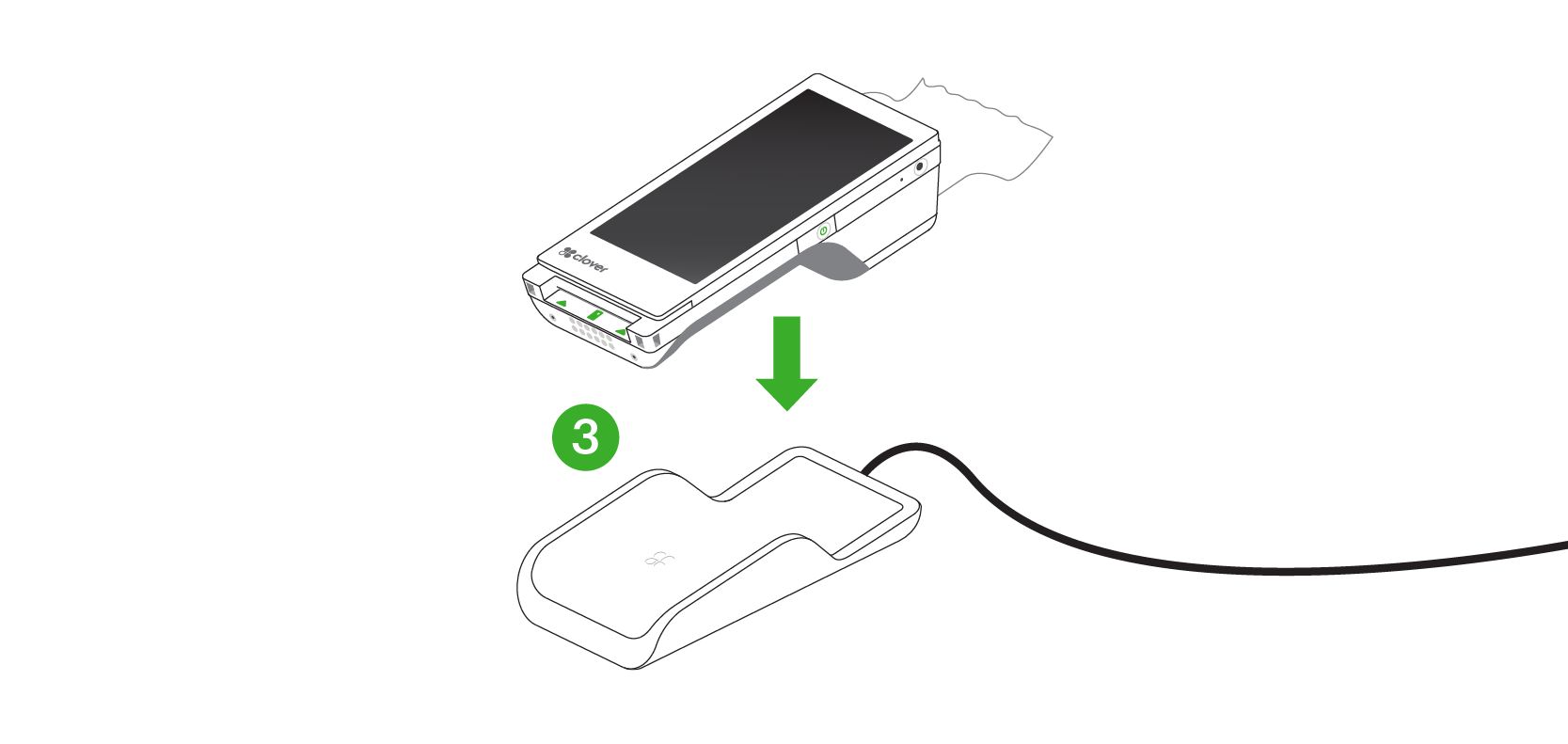
Set the Flex on top of the charging cradle.
Allow the device to charge until the indicator lights on the cradle turn solid green.