
What’s in the Station Duo box:
-
14-inch merchant-facing display
-
7-inch customer-facing terminal
-
Station Duo receipt printer
-
Starter kit with everything you need to set it all up
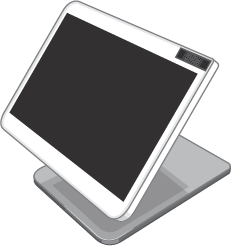
The display faces you and takes order input.
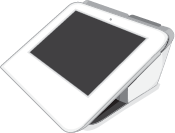
The terminal faces your customers, accepts payments and signatures, and has a headphone jack and speaker on the reverse side of the screen.
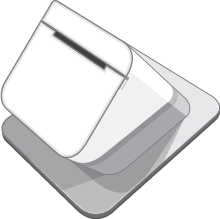
The printer prints a paper receipt on demand.

The screwdriver helps you connect all the cables for easy assembly.
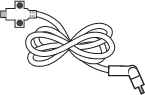
The connector cable connects the terminal to the display.
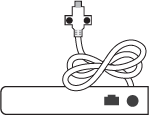
The hub connects the terminal and the display to the power adapter.
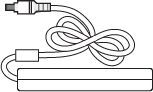
The power adapter connects the assembled system to the power cable.

The power cable connects everything to the power source.

The LAN Ethernet cable connects the completed assembly to your internet network.

The receipt paper roll goes into the printer.
Assemble your Station Duo
Put together your Station Duo by connecting all the parts. After all the parts are connected, you can plug it in. Start by getting ready to connect the parts.
Connect the parts
-
Take everything out of the box.
-
Gently place the Station Duo display screen side down on a clean, flat surface. Don’t worry about the screen. It resists scratching.
-
Place the Station Duo printer upside down next to the display.
-
Place the Station Duo terminal, screen side down, next to the printer.
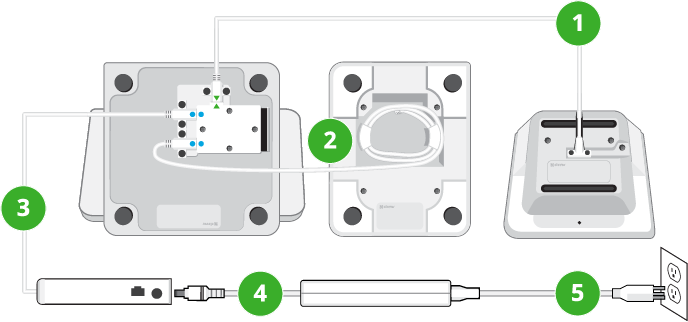
You’ll be looking at the bases of all 3 devices and the printer will be in the middle. Connect the parts by following the numbered steps:
-
Pick up the main connector cable. This cable has two small screws in both ends and one end has a green arrow.
-
Use the supplied screwdriver to connect the end of the cable with the green arrow to the base of the display, as shown.
-
Plug in and connect the other end to the base of the terminal, as shown.
-
Screw in the screws with hand-tight pressure, in other words, just hard enough to secure each screw and also be able to unscrew it later if needed.
-
Unwind the printer cable from the printer base and use the screwdriver to connect the printer cable to the base of the display, as shown.
-
Pick up the hub and use the screwdriver to connect its cable to the base of the display, as shown.
-
Pick up the power adapter, sometimes called a power brick, and plug one end into the hub, as shown.
-
Plug the other end of the power adapter into your power source for the system.
Your system is now connected and you can place each device right side up. The terminal will automatically powers on first, and then the merchant-facing display. There are no power buttons, but there is a reset button on the reverse side of the customer-facing terminal screen.
Activate the Station Duo
Before activating, make sure your internet is set up. If you plan to connect using WiFi, your router should be set up, connected to the network, and has a security level of WPA or WPA2. Your network needs to be a closed, protected, secure network to process payment transactions.
-
On the Welcome screen, select your preferred language.
-
Select an internet connection method:
-
Use Ethernet with the supplied Ethernet cable.
-
Your device's SIM card can connect to cellular data service.
-
Enter your WiFi network information.
-
-
When you’re prompted to enter an activation code, follow the instructions on the screen to retrieve it. Once you enter the code, Clover will install the latest apps for your device.
-
Continue through the remaining screens to complete the device setup process.
Set up the Station Duo printer
-
Open the top of the printer and press the green latch to release the printer head.
-
Install the thermal paper with the edge of the roll following the inside top of the compartment and out the slot.
-
Close the printer door until it clicks.
-
On the display screen, tap to print a test receipt.
Set a passcode to secure your device
During activation, you’ll have the opportunity to set a passcode. If you already have an admin account, the activation process will not include this step.
Setting a passcode adds an extra layer of security. Employees can have individual passcodes, which makes it easy to track their sales and attendance. You can set passcodes on the Web Dashboard or on the device using the Employees app.